With application-level elevation, routine administrative tasks go ahead while users keep standard accounts. Security teams decide which software, run by which users, should receive additional privilege.
You remove local administrator rights from employee laptops. Then the requests start arriving. A technician needs to update an approved diagnostic tool, but the installer requires administrative access. The technician has a job waiting, and someone on your team now has another ticket to resolve.
I understand the temptation to give the technician local admin rights and move on. You know who they are. You know why they need the tool. And you would probably prefer not to repeat this conversation every time the vendor releases an update. Making the same reasonable exception often enough can start to look suspiciously like having no restriction at all.
Consider an alternative: start with the particular application the user can’t install or update. Then, figure out who should be allowed to use it, and under what conditions. If you already control which software is allowed to run, you have a head start: the same decisions can tell you which of those applications should also run with more privilege.
The Software Is What Uses the Privilege
The technician’s reason for requesting administrative rights matters. It doesn’t, by itself, tell you what the software they install will do with that access.
The concern is the scope of what that person is authorized to elevate. Membership in the Administrators group is a much broader permission than approval to update one diagnostic tool. A UAC (User Account Control) prompt can require consent or administrator credentials, but your organization still needs to decide which software should receive that access in the first place.
Suppose that technician later downloads what looks like another useful support tool. If they can approve its elevation using their local administrator account, a malicious program could gain the ability to change protected system settings. Software makes changes through a running process. On Windows, that process’s access token largely determines what it can change. The legitimate reason for granting access to the first tool places no restriction on what this new program can do with administrative privilege.
The Application Name Is Only the Beginning
Of course, a rule saying “let the diagnostic tool run as administrator” still leaves quite a bit to interpretation. Which file is the diagnostic tool? Is the rule limited to the intended software, or could another executable qualify because it has a familiar name?
How you identify the software makes a real difference. A filename alone is a weak basis for the decision because it can be changed. A digital signature tells you who published the file, and combining the publisher with details such as the product name narrows what qualifies. A path on its own covers anything that runs from that location. Combined with the publisher, it can follow the application through updates while excluding files the vendor didn’t sign.
Which user is running the software should be a part of this decision. A technician’s responsibility for maintaining equipment may justify access that another employee has no reason to need. Conversely, being a trusted technician should not make every program they download eligible for elevation. You need the permitted user and the approved software to meet the policy together.
There are practical tradeoffs here. A rule tied to a specific file hash will need attention when an update changes that file. A broader publisher rule may cover more software than you intended. The right choice depends on the application and how it is maintained, but that choice should be deliberate. Otherwise, you can recreate broad administrative access one generous rule at a time.
Look at What the Elevated Application Can Launch
Even a carefully identified application deserves another look before you grant it administrative privilege. What can it do once it has that privilege?
An installer may start a helper program or run a script. Windows child processes ordinarily inherit their parent’s security context, so the effect of an elevation decision can extend beyond the executable you first approved. Applications that can start other programs, such as command shells and script engines, need particular care.
That matters if your approved diagnostic tool can open an administrative command shell. The technician may only want to troubleshoot a device, but the shell can support a much wider range of operations. Limiting elevation to an application is more precise than granting broad user privileges; it does not automatically confine that application to the task described in the request.
Your review, therefore, needs to include the application’s behavior and the controls available for any processes it starts. Test the actual workflow, including installation and updates, and establish how unexpected execution is handled. Because elevation builds on the allowlisting and blocklisting rules your team already uses, blocked software stays blocked, and the process that started an application can itself be a condition for elevation.
Make the Approved Route Practical
None of this changes the fact that your technician has work to do. If the approved route requires a fresh round of detective work for every routine update, you can expect the request for permanent admin rights to come back. Probably with the previous ticket attached.
A useful place to start is a recurring task your team already understands. Determine which component needs elevation and which employees need to run it. Then define and test a policy that supports that work. Include the next software update in your planning so a changed file does not force a choice between delaying the work and widening the rule without review.
Keep an exception process for requests the policy does not cover. The request should give your team enough information to assess the specific software and the work it needs to perform. Repeated exceptions are also useful feedback: they may reveal a legitimate workflow that needs its own policy or a rule that is broader than the task requires.
Airlock Digital Elevation Control supports application-level elevation through policy conditions that can include publisher, file path, process relationships, and user context. Approved processes receive the administrative privileges they need without elevating the user’s whole session, and users keep standard accounts. This works across Windows, macOS, and Linux endpoints, with behavior specific to each operating system.
You also need evidence that the policy is working as intended. With Airlock Digital, your team can review elevated application activity to understand how privileges are being used. Each elevation rule includes an option to upload execution activity, which can be useful when validating a new rule. Policy change history shows when elevation rules were added or changed, supporting audits.
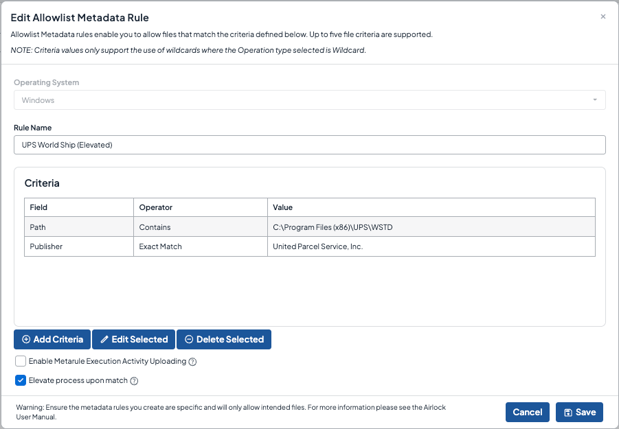 This allowlist metadata rule combines file path and publisher criteria to define which UPS WorldShip processes qualify for elevation.
Give Routine Work a Precise Approval
Removing local admin rights is easier to sustain when employees can still complete the legitimate tasks that prompted those rights in the first place. For your technician, success means getting the diagnostic tool updated without waiting for someone to grant broad access all over again.
For your security team, success means being able to explain why that installer was allowed to run with additional privilege, which users were authorized to run it, and how the rest of its execution was controlled. That is a decision you can test and revisit when the software or the business need changes. It gives you something more useful than another exception whose original purpose everyone has forgotten.